Showcase Topic Index
Topic Index for "Showcase"These are all posts shared by Top Five Advisor that are showcases, meaning, “popular” or “top” type lists that showcase the best in a certain topic.

These are all posts shared by Top Five Advisor that are showcases, meaning, “popular” or “top” type lists that showcase the best in a certain topic.
You’ve created your WordPress website, you’ve added your content and maybe you’ve even hired writers and started being a multi-author website. The very next thing you should be considering is a backup solution to protect your website.
I’m never one to fully rely on my web host to backup my stuff. I’ve read the nightmares some people have had when a web host had a hardware failure with RAID configuration corruption that wiped out not only client websites but the backups to that data too.
Way too risky. Let me help you take control of your website backups with various solutions that I recommend and use on my websites along with client websites as well.
Let’s start with the obvious. There are ways to backup your WordPress without using any automation at all. No WordPress plugins, no monthly paid services and it’s fairly straight-froward and easy to accomplish.
The problem? The manual backup is… well.. manual. You will have to remember to use your chosen method at least on a weekly basis to grab your backups and store it on your computer. Other than that, if this sounds like a great solution for you, Mr./Mrs. I’m in CONTROL and that’s the way I LIKE IT, let’s get started!
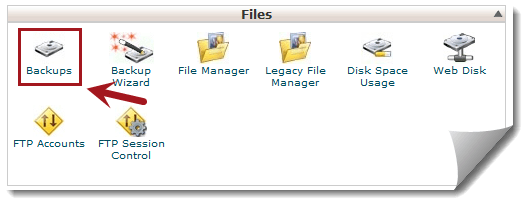
Most people are on a cPanel based web host. Examples of popular web hosts that use cPanel are InMotion Hosting, HostGator and SiteGround. If you see a section that looks similar to the screenshot above, then continue on!
Login to your cPanel using the instructions provided by your web host, find the Files section then click on Backups.
From here, you have three options.
I prefer to download the home directory and MySQL files separately so that I can restore them easier if needed. That choice is up to you.
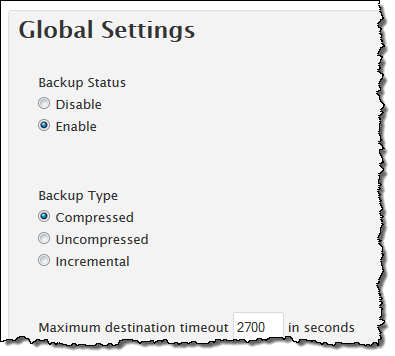 If you happen to be on a Virtual Private Server, you will have access to a much more powerful backup solution. Login to your WHM, search for backup and click on Backup Configuration. This will bring you to the screen shown on the right.
Here’s the backup settings I’d recommend for you to use but feel free to play with it.
Backup Status: Enable
Backup Type: Compressed
Backup Weekly: Sunday
Retain: 4 Weekly Backups
Backup Accounts: (check)
Select Users: Select all
Backup Suspended: Enable
Backup Access Logs: Enable
Backup Bandwidth: Enable
Use Local DNS: Disable
Backup System Files: Disable (your host can restore this easier than you)
Databases: Per account Only
Backup Directory: /backup
Once you save your configuration, you are set. Now all of your cPanel accounts will be backed up and you’ll likely get an email from your server letting you know a backup has been completed every Sunday. Just login to your server with FTP, navigate to the /backup folder and begin your downloads.
You should be able to find a backup option on any web host you are on. For instance, in Parallels Plesk Panel, find the Backup Manager under the Files section. The process is very similar to the cPanel method shown above.
If you have a vDeck control panel such as the one provided by iPage, then look for Archive Manager and zip the entire www directory.
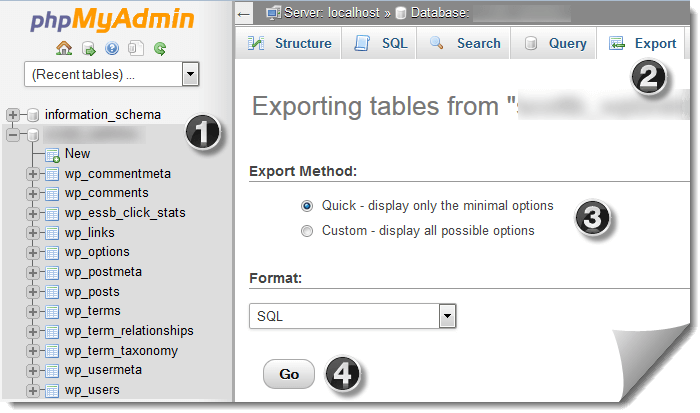
Based on my experience with some less-than-optimal web hosts, you may need to download your WordPress database the old caveman way using PHPMyAdmin. Every host I’ve encountered has had access to PHPMyAdmin because it’s the easiest way to allow clients to make changes to their database.
Fortunately, PHPMyAdmin also allows you to download your entire database.
Take that you data hoarding web host!
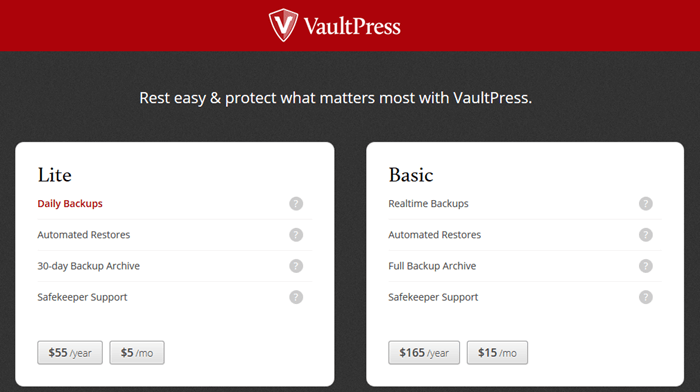
VaultPress is a premium service provided by the Automattic team, the same guys who develop and run WordPress.com. Services start at $5/mo and it includes full daily backups with automated restores should you need to. It also includes a 30-day backup archive and customer support if needed.
You can upgrade to the Basic plan which does real time backups and will allow you to keep a full backup archive so that you could restore from a 90-day old backup if you needed to.
After installing VaultPress, you will be asked for a subscription or your registration key if you have one already. There is no free version available.
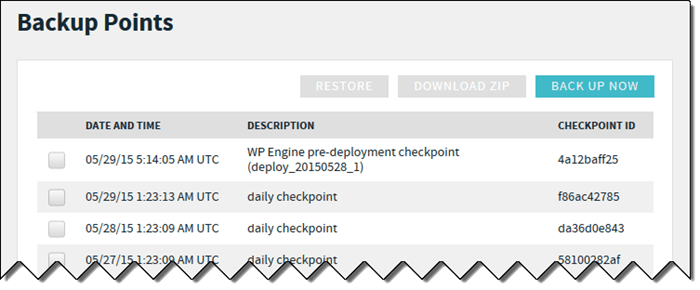
WP Engine is a web host that specializes specifically with WordPress. One of the coolest features that these guys offer as part of the service is automated backups of your data and database in a method they call Backup Points.
WP Engine will save a full month of your backups that you can restore from. Just click the checkbox next to a backup point, click the restore button and follow the instructions. It just doesn’t get any simpler than that.
Additionally, you can create your own new backup and download that to your hard drive whenever you want.
To download your backup, place a check in the archive you want to download and then click Download Zip. From there, WP Engine will send you an email with the download link to download your archive. I recommend doing this once a week just to be safe.
There are a couple backup plugins that you can choose from. These are both easy to use and easy to configure and will allow you to backup your website from within your WordPress dashboard.
The problem with these plugins is they can be resource intensive depending on how large your website is. At some point, you might get an email from your web host telling you that your website is using too many resources and it will likely be from a backup plugin or from a caching plugin, so keep that in mind.
Another issue you may have is forgetting to download your backups. All these plugins do is help you create your backups but they do you little to no good if your host suddenly goes offline, has a catastrophic hardware failure or something similar that wipes your site off the Internet.
It’s always good to have a local copy. If you choose to go this route, make it habit to download your backups on a weekly basis and consider setting up a weekly alert on your phone with Google Calendar.
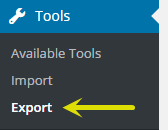
Find it at Tools > Export.
 There are times that you may need to export a file of just your post content for importing into another WordPress website. I had to do this for a client that wanted to migrate from a WordPress MultiSite install to a regular WordPress install.
Using this method will create an XML file that will contain all of your posts, pages and custom post types content when you select the All content option.
The problem with using this method is a big one. If your website goes offline and you try to restore from this XML file, WordPress will not be able to access your media embedded within your posts. Therefore, all of your content that has images will show broken images everywhere.
I don’t recommend using this method unless you have a unique situation like we had. Backing up your entire database and full website structure is way cleaner to restore from and it doesn’t rely on your current host being online to work. If you are migrating web hosts, it’s a simple as logging in to your domain registrar and changing the nameservers to your new host.
What’s your favorite way to backup your WordPress website? Chime in at the comment section below. As always, if you feel this guide will help someone, please pass it on to them and share it on social media. I appreciate your support!
Since we’ve released the Google+ Beginner’s Guide and since updated it with the latest features, we thought we’d share what we think are the top five Google+ tools that you should use to get the most out of the network.
Use these tools to discover new Google+ members to follow, to manage your circles and much more. Business users would also benefit from utilizing these tools to help their brand awareness, engagement and to find conversations they should be a part of.
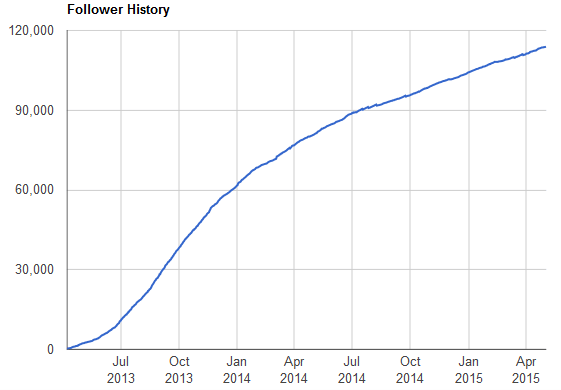
Head over to Popular > Engagement and select Profiles, Pages, or Communities and find people, pages or communities worth following. If you really want to dive in, check out the Specials menu. It will show you all sorts of hot posts, profiles and so much more.
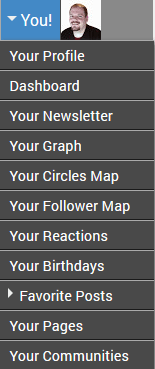
Of course, as shown on the right, the “You!” section has all sorts of tools and resources you can use. Click “Your Profile” to see statistics on your Google+ content, see what people love the most, see how many people are circling you each day, see what posts are getting the most comments, +1s and reshares.
Visit CircleCount, sign in with your profile and away you go!
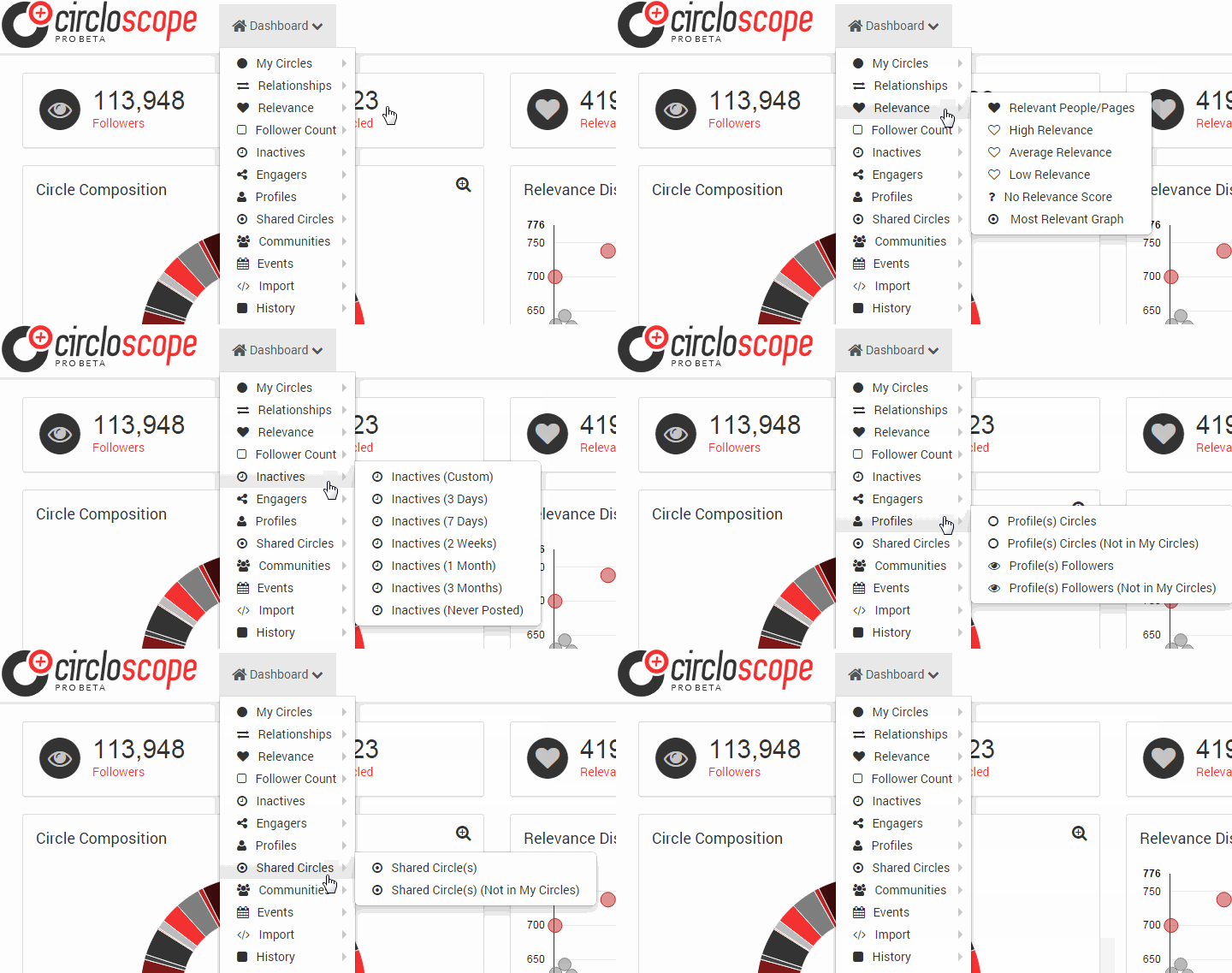
For anyone that has used Google+ for longer than a month, you know that managing your circles can be a laborious task. Enter Circloscope to the rescue! Above, we created a quick animated gif from within the browser plugin that shows you all of the features available. When you click any of the items from the dashboard menu, you’ll be presented with additional options and customizations.
With Circloscope, the 5,000 circles limit that Google+ imposes will no longer be a problem. Filter out the inactive people, place highly relevant people in special circle groups, filter and sort with many options to choose from, export your circles and you can even undo accidental uncircles. Here’s a quick tutorial by Christine DeGraff that explains and shows Circloscope uses.
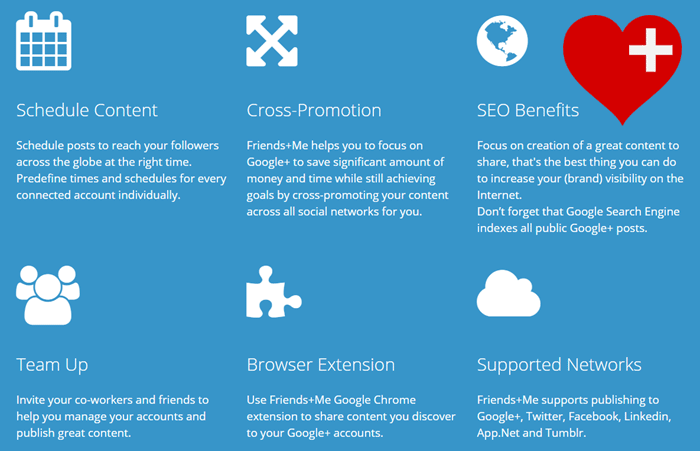
If you happen to enjoy Google+ so much that you use them as your primary social media network, then you’ll really love Friends+Me. This tool will allow you to share your Google+ profile and page content to your other popular social media accounts, automatically. In addition to this primary feature, you can also take advantage of their scheduling features to share your content on other social networks at optimal times.
Currently, Friends+Me supports: Google+, Twitter, Facebook, LinkedIn, App.Net and Tumblr.
Without a doubt, Friends+Me is the best sharing tool that you can use if you use Google+ as your primary social network. There’s nothing more powerful than sharing posts and content on your Google+ profile or page and knowing that this service will share it across other major platforms for you.
Friends+Me also provides a Google Chrome extension. With this on your browser, you can take advantage of added enhancements to make sharing to your other social media as easy as possible. The extension is not required to use this service (for those that enjoy a clutter-free browsing experience).
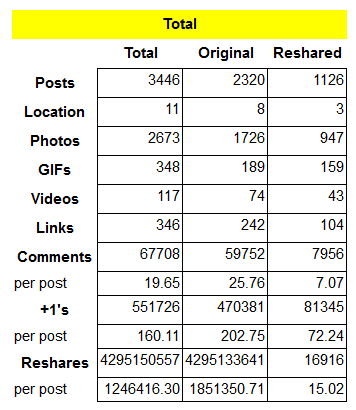 Here’s another fun tool to play around with if you’ve ever used Google+ before. As the name suggests, this tool will show you stats all about your profile and it includes the ability to see an overview (see Scott Buehler’s stats to the left), locations, charts, popular posts, people, photos and more.
One of our favorite features of this particular tool is the “People” section because it shows you all of your biggest fans that have reshared your content. It helped identify people that we weren’t aware of who constantly shared our content.
 Another fantastic tool for business users, fun G+ topical pages and many niches in-between, is Buffer, which allows you to schedule posts not only to your Gooogle+ pages but to your Twitter, Facebook, LinkedIn and App.net.
Once you set up your Buffer with times to share content and connect all of your social media, you can then browse the Internet as your normally would but now, when you see something amazing that would be a perfect fir for your page(s), you can now click the buffer button and schedule / queue that content along with your description.
Of course, to enable these quick-sharing features with Buffer, you will need a browser add on. Unlike the other tools we mentioned here, Buffer offers apps with all of the major browsers. Just visit this page and Buffer will detect your browser and offer you a blue button to install the browser add-on. From there, you’ll be off to the races and sharing content in no time.
You can also use Google+ posting enhancements to bold and italics you content, see our Google+ Beginner’s Guide (under Google Plus Formatting Options) for how to do that.
We’re curious to hear what your favorite Google+ tools are. Leave a comment below and let us know!
For those curious, we put together this list of the top 5 social media networks as of May, 2015. Most people know that Facebook is the top social media network in existence, however, what about the remaining list?
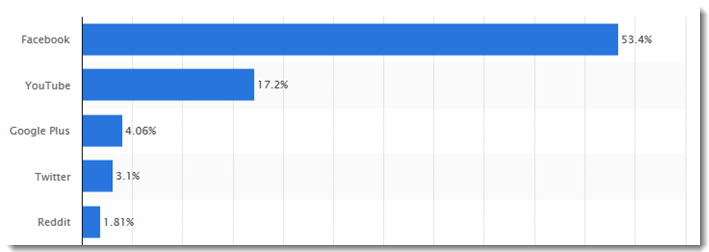
Thanks to the Statista website, we were able to put together this list of the top five social media networks based on the total share of visitors from the United States.

Alexa: 2; Quantcast: 3; Compete Rank: 3
For those that have a business, it is strongly suggested that you create a Facebook business page. Although Facebook continues to change their algorithms to show less and less of your content to the people who “Like” your page, you can enhance your traffic and conversions by taking advantage of their Facebook Ads platform. With some optimization, you can drive cheap likes and website traffic to your website with various targeting options available at your fingertips.
Besides business usage, we find Facebook to be king for networking with others. Whether you are looking for like-minded people or those that love a particular niche, Facebook will have more of the users registered, all available with a quick private message.
 YouTube commands a massive lead in video viewing and they attract over 17% of all social media traffic to the videos published there. YouTube is great for finding guides, training, how to help, entertainment and so much more. If you have an interest, YouTube will have thousands of videos available to view and enjoy. Here’s their current stats:
Alexa: 3; Quantcast: 2; Compete Rank: 2
For business users, you can publish videos about your website, business topics and much more. Additionally, you can take advantage of their free video hosting and embed your uploaded videos directly on your website. For those wanting to advertise, you can take advantage of Google AdWords to promote your videos within the network or via the Google search and partner networks.
For personal users, YouTube can be a massive time trap. Chances are, you’ll find YouTube videos on a topic you are searching for on Google and you’ll be suckered in to watching many more videos. With the related videos feature, it’s very easy to go down the rabbit hole and come out hours later wondering where all the time went.

Google+ is a social media network most similar to Facebook in that you can “circle” people of interest. Although similar, you’ll find many of their popular members fall into the anti-Facebook crowd. Google+ features a customizable stream that you can sort by your circle groups. Therefore, when starting out, it is in your best interest to create circle groups that make sense for your needs. That way, you can sort the stream circles to find the exact content you are looking for at any given moment.
Be sure to check out our Beginner’s Guide to Google+ to learn the complete ins and outs of this social network.
We highly recommend creating a Google+ page for topics that interest you and also for any website that you own or manage. Since Google search will occasionally display content from the Google+ network, it’s a network that you simply cannot ignore.
 Twitter is a network for people that love to communicate in short messages. Your “tweets” are limited to 140 characters but you can take advantage of hashtags and website links to expand the conversation. Twitter allows mobile and desktop users to upload images to extend the conversation as well.
Alexa: 9; Quantcast: 9; Compete Rank: 8
For business users, you can create Twitter profiles on every website you own and you can take advantage of several Twitter services that allow you to schedule tweets such as Buffer or HootSuite. Additionally, it’s a great place to share when you add new content to your website or when something important like a major milestone is reached.
 What? Reddit? Surprised us too! Reddit commands 1.81% of social media traffic with LinkedIn only 0.03% behind it. Reddit is an entertainment and news-based social networking website where their users can submit links and text-based content to topical “subreddits.” The users can then vote up or down the content which will determine placement in the subreddit’s “Top” page for the day.
Alexa: 25; Quantcast: 129; Compete Rank: 61
Reddit has an ever-growing list of subreddits that you can browse, interact and use for finding up-to-the-minute news and trends in any niche/topic that you can think of. We currently use Reddit to find trends or to research what is being talked about in niches that interest us.
What social media networks do you consider your top five? How many of you use Instagram, Pinterest, LinkedIn, WhatsApp or SnapChat? Leave a comment below and join us in the conversation!

Baby photography is always amazing, always wonderful look at and definitely a topic we’ve never covered before. Of course, baby photos are always popular, people love looking at them and with the right lighting, perspective, angle and editing, sometimes the results are absolutely breathtaking.
I spent the day browsing tons of baby photos that were taken or published in or close to 2015 (as best as I could tell, anyways). Here’s my favorite baby photographs I found in my search. Enjoy!

Portrait by Shannon Leigh Studios with props by A Sweet Sweet Boutique
Seriously now. If this photograph doesn’t make you melt, nothing will!

Photo by Captured by Clay Photography
That tongue. Those eyes. That smile. What’s not to love about this photo?!?

Photo by Lorena Jean Photography
This awesome photo was when Mia was 6 months old as well. Quite an amazing photo and composition!
Photo by Jennica Christine Photography
Wow, the beautiful blue eyes, the awesome headband, pink beads and what looks like a multi-colored tutu, this photo of Sophia is stunning.

Photo by A.Tonagel Photography
This photo of Lila caught my eye because of the hair imperfection and adorable smile.
Social media is everywhere and I love it! I’m always on the look-out for awesome and trendy social media icon collections that can be freely downloaded and used on your website(s). These are my favorite collections that I’ve bookmarked and discovered in my search for free premium trendy social media icons.
Below, you will find my collection of 25 awesome social media icon sets.
This collection provided by GraphicsFuel offers a total of 20 clean and flat social media icons. These were created with shape layers in PSD format making them easily editable. These are in 114×114 size, primarily for iPhone 5 display, although you can easily resize them down to what you need for your website or other use.
These are awesome! They mimic the look at feel of social share icons of 2014 and look fantastic. The website provides you with a PSD formatted file with the size as shown below. Unfortunately, you’ll only be able to go with the size shown or resize to fit. If you need larger icons, this set isn’t for you.
Designer: Hugo from Dribble.
These social media icons are Polygon shape and I know some of you math / geometry whizzes out there will get a kick out of these social media icons! These are AI vector file format so you’ll be able to resize to your heart’s content.
There are 15 icons total in this collection.
Author: LunarPixel from DeviantArt.
One of the latest trends I’m seeing is long shadows. Here’s an excellent set that offers 16 social icons in PSD format that includes the long shadow look and feel. This set includes various shapes depending on the icon and each design element can be removed, say, if you don’t like the long shadow.
The only thing I wish this set had was uniformity by using the same shape on all icons, but that is a personal preference.
A free resource provided by Pixeden.
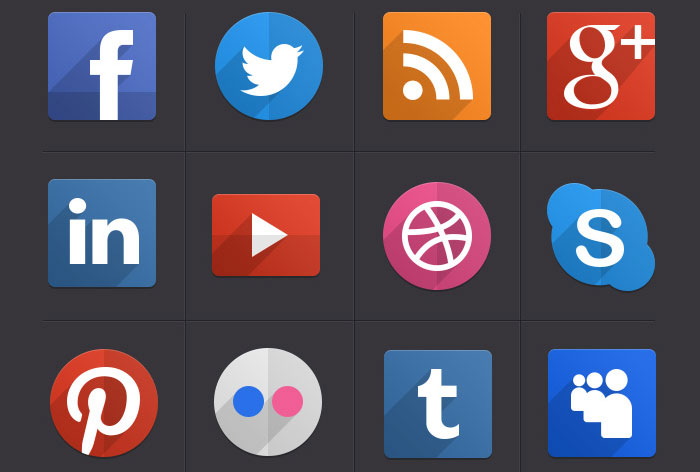
This set includes 32 different social media icons and are in EPS file format for resizing.
Author: Allan McAvoy and shared on Dribble.
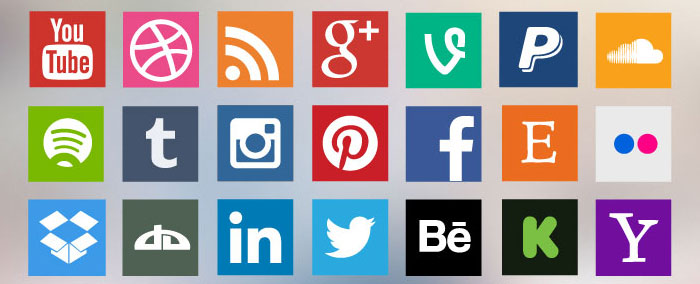
A set of colorful, flat-designed icons for 30 major social media networks, including Facebook, LinkedIn, Google Plus, MySpace, Vimeo, YouTube, Tumblr, and more. The set works great with both bright- and dark-color background.
This package includes PNG, ICO, and PSD formats. There are 30 icons in this collection all at the size of 256 x 256px.
Designed by: Probal Kumar D. Released by WHSR.
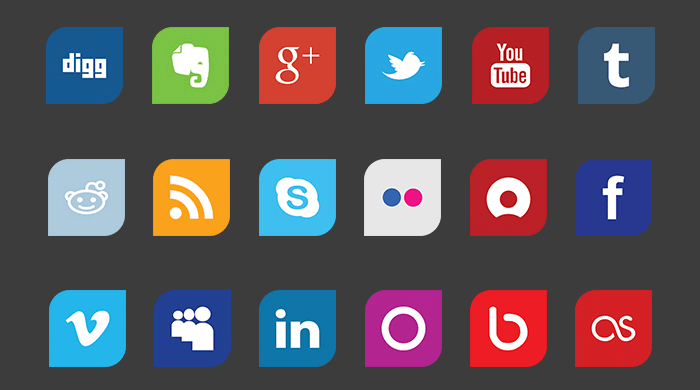
This set includes 40 social media icons inspired by Google’s new visual style of long shadows.
Each icon comes in 4 sizes:
Shared by: GraphicBurger
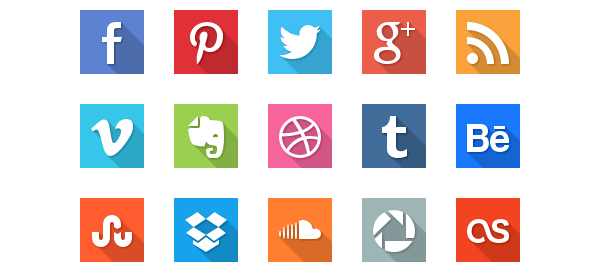
This icon set is as flat as you’ll ever find for social media. If you are devoted to the ultra-flat designs that were made popular in 2013, this icon set might be right up your alley. There are 24 icons in this set and it includes four varied styles to choose from:
This set also includes 5 sizes to choose from from 512×512 px to 16×16 px. The file types included are AI, EPS, and PNG. The file includes well-organized groups to change colors and sizes.
Designer: Mohammed Alyousfi
Shared by: Speckboy
These social media icons include shadowing at the bottom with a general square share that includes rounded corners. This set includes PNG and a PSD for editing.
Provided by Will Francis of Harkable.
This social media icon set is elegant and comes in both dark and colored versions to use on your website. If you know how to code CSS sprites, you could really do a nice mouse-over effect with these that will make your social media POP.
Includes 24 icons and is provided by BestPSDFreebies.
This set includes 42 icons at 64×64 px size in PNG and PSD formats.
Designer: Nick Roach
Made Available on Elegant Themes.
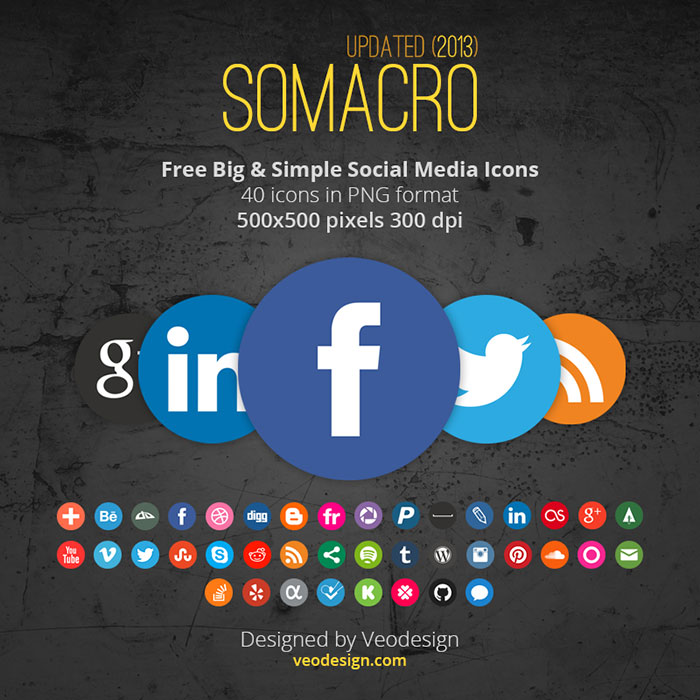
One thing that caught my eye about this set is it is constantly being updated. It has gone through 5 edits since initial launch, which is quite amazing!
All 40 icons are in PNG format at the size of 500×500 px in 300 DPI for maximum flexibility. At 300 DPI, you can use these for both print and web, which is a nice bonus for those looking for social media icons for presentations and resumes.
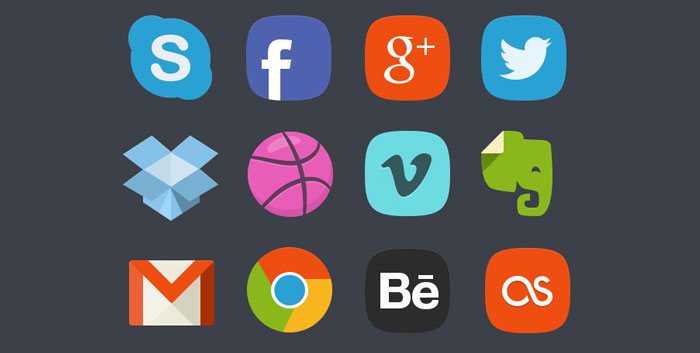
This is a nice collection of 20 badge-based social media icons. Each badge is crafted by Photoshop shapes so you can edit, alter, and resize them to your needs.
Designer: Denis Shepovalov
Provided by: Best PSD Freebies
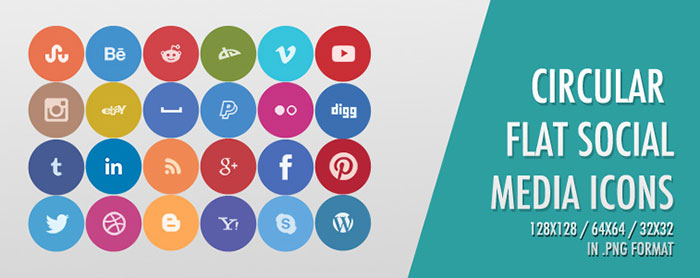
This set includes 24 circular icons made available in PNG format. The sizes available are:
Designer: Pauline Cabrera
Provided by: OneXtraPixel
Editor’s Note: Download requires email opt-in.
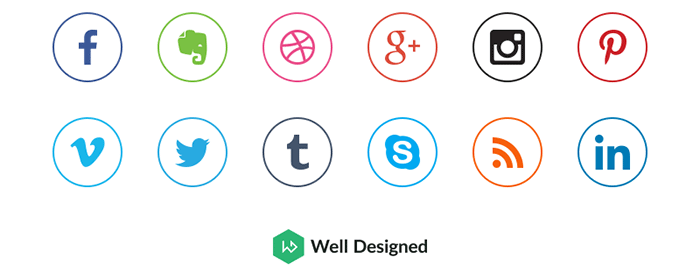
These caught my attention because they are extremely clean and mean for those minimalistic designed website themes. All images are in PNG format and are 80×80 px in size.
Designer: Dawid Dapszus
Company: Well Designed
Provided on: Dribble
Well aren’t these unique?!? There’s only six styles provided here since it is an older social media icon set but thought I’d provided it here for some pizzazz. All images are transparent in PNG format. The sizes available are:
Designer: Andrea Austoni
Provided by: Noupe

Here is another set of social media icons that caught my eye for their uniqueness. These 25 social media icons were created Adobe Illustrator CS5 and are completely scalable to any size you need. The shadows are semi-transparent so you can use them on various background types.
Includes an AI and EPS version.
Designer: Jasmina Stanojevic
Provided on: Noupe
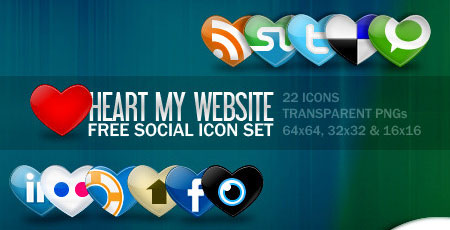
Since this post was made a week before the US Valentine’s Day holiday, I thought I’d include a hearts social media icon set. This set includes 22 icons in PNG format it sizes:
Designed by: Aravind Ajith
Provided on: Smashing Magazine
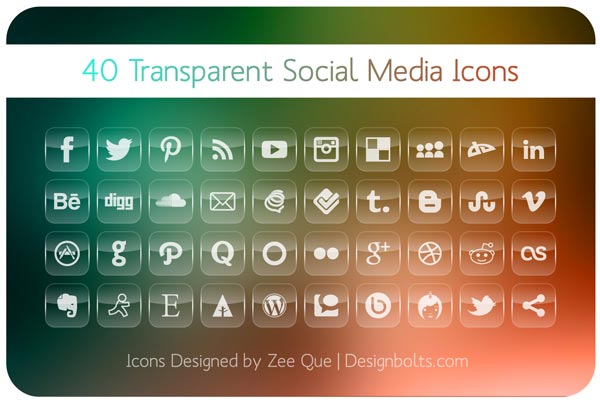
This set is interested because they are completely transparent and bleed through to your website’s background. Therefore, if your website has a dark background, this icon set might be perfect for you. You can’t use these on a light background because they won’t be visible.
This set includes 7 sizes from 48×48 px to 512 x 512 px. If you need a vector AI file for this set, there is one available for a $3.00.
These are really interesting and provided by yaruno on DeviantArt. The only issue I see with this set is they aren’t provided for download. However, you can download a higher resolution image of this set and attempt to crop out these if you’d like?
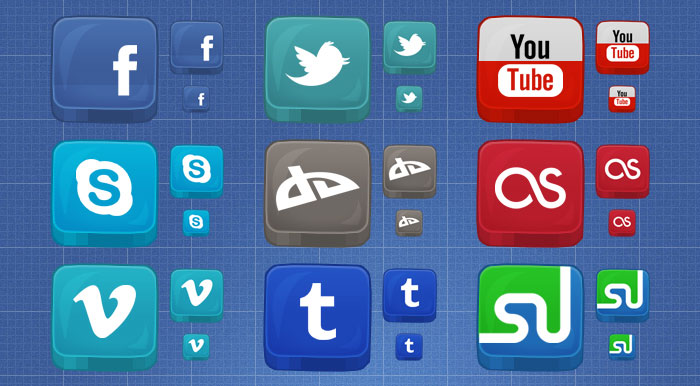
A very unique social media icon set offers a “letter-pressed” look. I haven’t seen a set like this before, so I knew it belonged here. This set includes 12 icons with the size of 75×75 px.
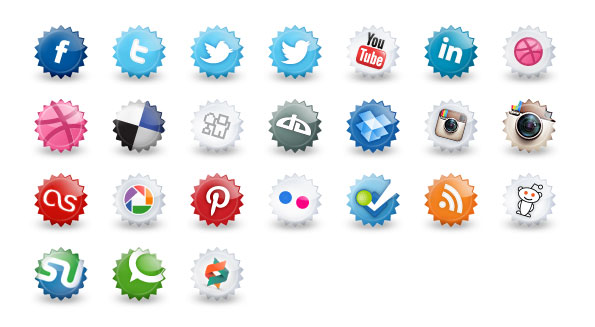
These remind me of bottle caps so that’s what I’m calling them. They look absolutely fantastic and come with 2 variants, with shadow or without. This is actually a set of 86 PNG icons that contains social media icons, web browser icons, payment services icons, mixed services icons, and even Czech local services icons.
This set includes the following sizes:
Provided by: Plugo Labs.
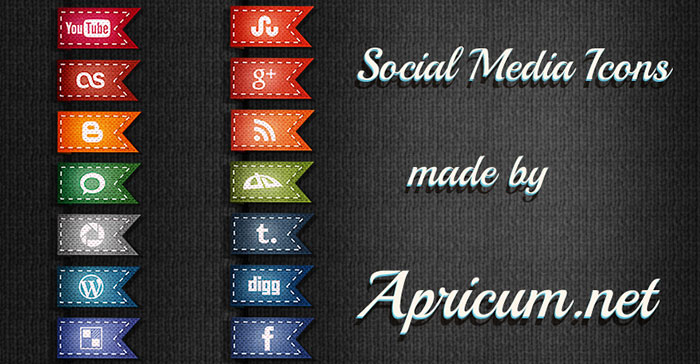
This is a set of 24 social media icons in PNG format with the size of 100×50 px.
Provided by: Apricum
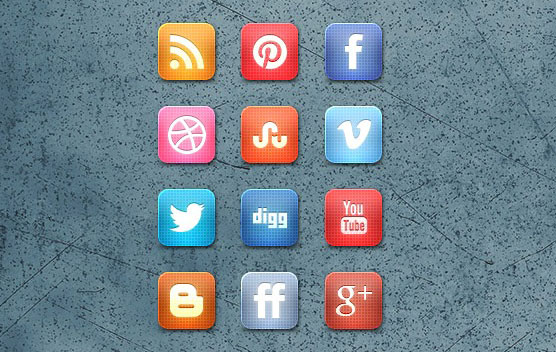
This set includes 12 icons in total with the size of 64×64 px. I liked this set for the grid pattern that is included in the icons which provides an interesting feel.
Designed by: Timothy Blake
Provided by: Creative Nerds
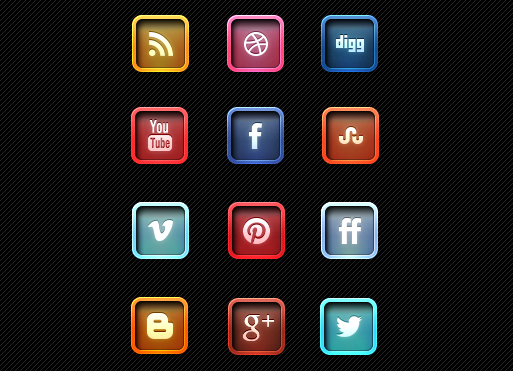
This metal set of social media icons includes 12 icons in total with the size of 64×64 px.
Designed by: Timothy Blake
Provided by: Creative Nerds